Ways to Drive a Browser — Playwright, Selenium, and the Ghost of Pyppeteer, Part II

Updated: May 10
Part I focused on the basic mental models: Playwright as modern browser automation with strong defaults, Selenium as the veteran WebDriver standard, and Pyppeteer as the unmaintained historical bridge.
In this part, we move into the practical questions that appear once a small script becomes a real project: how you handle optional UI, network mocking, parallel execution, scraping pipelines, mobile devices, and neighbouring Python tools that sit around the core browser automation libraries.
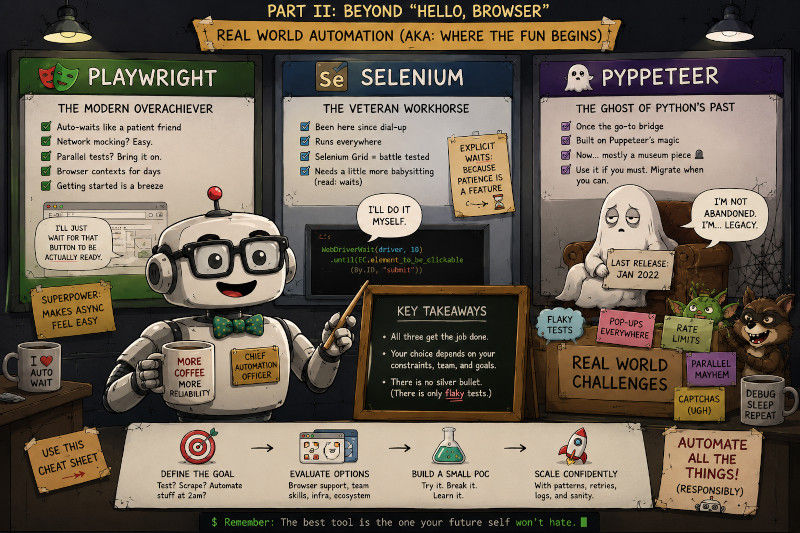
When Auto-waiting Breaks Down
Playwright’s auto-waiting is worth having, but it can lead to some problems.
If the element will never appear, you will wait the full timeout every time you try. For conditional elements, you can check existence first:
This pattern is useful for optional pop-ups, cookie banners, experiment-driven UI elements, or admin-only buttons. The key is to reduce the timeout when absence is an expected outcome.
Another good Playwright pattern is to use assertions for states you expect to become true:
Assertions also auto-wait, but the intention is clearer. You are not just sleeping and hoping the page changes. You are saying what state the page must reach.
With Selenium, you choose your wait strategy upfront, since there is no build in timeout:
You can also customise polling frequency and ignored exceptions:
This is a customised wait object that can be reused later on. In this particular case, we include a timeout and a frequency for which to check. We also added a ignored type of exception, in this case the 'StaleElementReferenceException'. This is useful on pages that re-render aggressively, for example a React app may create an element, destroy it, and recreate it later on. Selenium gives you the tools to handle that, but you have to decide which failures are temporary and which failures are real.
The trade-off here is that Playwright optimizes for the common case, while Selenium let's you optimize for the situation you will need, with more work of course.
Intercepting Network Requests
Modern testing often needs to mock API responses, especially to simulate error conditions. We want to look at how this is handled by both packages.
Playwright
Here we use a function that sets up a route object. In this case, it is registered by the page.route() function and instead of the actual API answer, the request will be handled by the mock-up data defined in our function, containing an html code for success, a body containing the 'data' and finally the header that tells the app that this is JSON. From now on whenever a request is made to an URL that matches '**/api/user', it will instead be handled by our handle_route function.
This is a very convenient setup, since we do not need any external tools to make this work, but instead can use the built-in network interception of Playwright.
You can also abort requests or let them continue:
In this example, we first use a simple lambda function to simply abort all images that appear in a request, especially useful if you only want to obtain textual information and get rid of any images in the scraped site. In the second case we do not block or reroute, instead we intercept a request object, this is the usual result of the API request, and add extra metadata to it. We kept this fairly simple, in a full example you might not want to mutate the original request header here.
Selenium
Selenium does not intercept network traffic. In this case we need the help of an external tool, a proxy.
In here we first setup a server, a BrowserMob Proxy server object. Note that 'path/to/browsermob-proxy' is simply a placeholder for the path to the BrowserMob Proxy executable on your local system. Then this server is started and create a proxy. Then before initializing our webdriver as usual in Selenium we add an option to use the just configured proxy. Finally we set up an HTTP Archive to record all the calls that were made.
This is quite a bit of starting setup and we haven't even started blocking or rerouting anything. Let's say we want to block images from loading again. Then we would have to add the following to make sure such requests are blacklisted on the proxy:
In practice, Selenium teams often solve network-related testing in one of three ways:
use a proxy such as BrowserMob Proxy, mitmproxy, or a corporate testing proxy;
expose special test endpoints or test flags in the application backend;
avoid network mocking at the browser layer and instead run against a controlled test environment.
The first approach gives you flexibility but adds infrastructure. The second approach can be very stable but this requires you to have access or control over the API you send requests to. The third approach is simplest but makes it harder to simulate rare failures and in addition you have to build a controlled test environment.
Multi-browser Testing
Playwright
Multi-browser testing with Playwright is straightforward:
You can also configure browser choice from the command line:
pytest --browser chromium
pytest --browser chromium --browser firefox
pytest --browser webkit --headed
For many teams, this is enough. Run Chromium on every pull request. Run Firefox and WebKit on nightly builds. Keep the slowest browser matrix out of the fastest feedback loop.
Selenium
Selenium with pytest-xdist handles parallelization but you manage browser instances:
You can then run tests in parallel:
pytest -n auto
pytest -n 4
That -n option comes from pytest-xdist. It is not Selenium-specific. It is a general pytest plugin for distributing tests across multiple worker processes. For browser automation, it is especially useful because browser tests are often slow and independent. Running four browser tests at once can be much faster than running them one after another, as long as the tests do not share state.
The same idea can be useful with Playwright too. pytest-playwright handles browser fixtures; pytest-xdist handles process-level parallelism. Together, they let you separate two concerns: how a browser is launched, and how many tests are allowed to run at the same time.
A practical command might look like this:
pytest --browser chromium -n auto --tracing retain-on-failureThat says: run the Playwright tests in Chromium, distribute them across available workers, and keep traces only for failures.
With Selenium, the next question is usually whether browsers run locally, in Docker, or remotely through Selenium Grid:
In this case you connect to a Chrome session that is hosted at the indicated port. In this way a Selenium Grid can distribute tests across machines, operating systems, browsers, and versions. This is also an ideal way to use different CI infrastructures for these test, since they can be used to provide the different browser sessions. Playwright can also run in CI at a large scale, but Selenium is more established in this and so the ecosystem is more extensive.
In the end, both have the ability to perform multi-browser testing, Playwright has less boilerplate, Selenium has more existing infrastructure.
Pyppeteer: The Maintenance Problem
Pyppeteer was an unofficial port, the goal was to replicate Puppeteer’s API for Python for developers who wanted Chrome DevTools Protocol access without Node.js.
As already mentioned in part I, its last release was January 2022, even Python 3.12 compatibility comes from community forks, the last release was around Python 3.8.x. This of course also means that some features from newer Puppeteer versions never arrived.
If you have existing Pyppeteer code:
This will still work, assuming that all the dependencies and older Python version problems have been taken care of. For transparency, the above code only runs on my Windows laptop, for my MacBook the browser has to be swtiched out and there are some problems with the accepted Python version for me. So new projects should never start here.
A slightly more realistic Pyppeteer scraping example usually waits for a selector:
This translates very natural to Playwright:
Comparing the two, it is nearly line for line the same, the only differences are really the definition of the browser, the slight change in wait orders, and finally the exact way to locate the header. But the structure is essentially identical.
So the morale here is that migration to Playwright is straight forward. The API is similar enough that most patterns translate directly, async functions can stay async, selectors work the same way.
The main migration work is not usually the browser launch, but rather the details: wait names differ, screenshot options differ, evaluation helpers differ, and Playwright’s locator model encourages a slightly different style. But if your code already uses async functions and CSS selectors, the conceptual move is not huge.
When NOT to Use Each
Skip Playwright if:
You need Internet Explorer support
You need Safari on older macOS versions
Your team is unfamiliar with async patterns and has no time to learn
You are integrating with tools that expect Selenium WebDriver protocol
Your organisation already has a large Selenium Grid setup and the migration cost is not justified
You need a very specific browser/version/device combination that Playwright does not support
Skip Selenium if:
You are writing modern test automation and want auto-waiting behavior
You need built-in network interception without external proxies
You want video recording and trace files without additional setup
Speed matters and you can control your browser targets
You want tests that read more like user actions and less like driver plumbing
You are starting from scratch and only need Chromium, Firefox, and modern WebKit
Skip Pyppeteer entirely unless:
You are maintaining legacy code that already uses it
You are temporarily patching an old scraper before replacing it
Even then, consider migration cost vs staying on an unmaintained library
The way I see it: choose Playwright by default for new Python browser automation. Choose Selenium when compatibility, existing infrastructure, or WebDriver integration is the main requirement. Choose Pyppeteer only when the choice has already been made for you by old code.
The Real Difference
Playwright was built for testing modern web applications, hence it includes auto-waiting, network interception, test isolation, and trace viewer for debugging failures. The library assumes you want reliability and if possible performance.
Selenium was built for cross-browser compatibility. It runs everywhere and gives you a lot of control, especially if you want to use specific browser features. It does not try to be smart about timing or state management. All of these are things you will have to add yourself.
Pyppeteer was an experiment. It brought Puppeteer’s Chrome DevTools access to Python, but without official support, using it becomes a bigger and bigger risk.
For new projects writing browser automation in Python: Playwright for tests and modern scraping. Selenium when you need maximum browser coverage or are integrating with existing WebDriver infrastructure.
For old projects using Pyppeteer: evaluate the migration effort. After all, the library works today, but it might not work tomorrow.
With Playwright, the library carries more responsibility: waiting, tracing, isolation, network control, and test ergonomics. With Selenium, the user and test framework carry more responsibility: waits, fixtures, browser lifecycle, screenshots, logging, and infrastructure. With Pyppeteer, the user is asking for as much risk as possible.
Code Comparison: Filling a Form
We assume that we have a website with a signup form. We need to fill in an email address, a password, check a terms of service box and click a submit button.
Playwright
The syntax is pretty self explanatory here, we look for the input field called email and put in our email, then we look for the one called password and enter the password, then check the terms of service box and finally click the submit button. We then wait until we are at a welcome site to know that it all worked out.
A more test-like Playwright version would use locators and an assertion. We leave the definition of browser and page unchanged, but after navigating to the website, we change as follows:
This version is longer, but it communicates intent better. It says: fill the field labelled Email, check the terms checkbox, click the button a user would recognise, then confirm the welcome page appeared.
Selenium
The general structure is of course similar, the main difference is that we have to manually define a wait object, then use this to wait until the email element is present. Then we do the rest more or less as before until we finally wait until the URL has changed to the welcome screen.
A more defensive Selenium version would wait for each important interaction, similar as we did for the email item in the previous example:
Except for the numerous wait commands and also making sure that we clear potential entries and only check the terms box if unchecked, this is more or less the same as the Playwright example. But it is very robust, we explicitly described every readiness condition. Especially if this type of control and debuggability is needed, this type of setup becomes a feature rather than a defect.
Pyppeteer
In Pyppeteer, you often need to be careful about navigation timing. If clicking the submit button triggers navigation, then the navigation may have already happened when we arrive at page.waitForNavigation(). Thus a safer pattern is:
The idea is to start waiting for navigation at the same time as the click happens. This way the navigation cannot begin before the wait is registered.
Playwright has similar patterns for some advanced cases, but its locators and assertions remove much of this manual timing in normal tests.
We can see here the structural difference, where Playwright is meant to be clean with minimal explicit waiting, Selenium gives but also needs explicit control. Pyppeteer is similar to Playwright, just more primitive and far less advanced.
Installation Differences
Playwright
pip install playwright
playwright install  # Downloads browser binaries
Manages browser binaries for you. Unless changed this downloads Chromium, Firefox, and WebKit. You can also install only one browser, which is useful in lightweight Docker images or CI jobs:
playwright install chromium
playwright install firefox
playwright install webkit
On Linux CI, you may also need system dependencies:
playwright install --with-deps chromiumFor testing, the pytest plugin is usually installed separately. So if you need testing, just start immediately with:
pip install pytest-playwright
playwright install
Selenium
pip install seleniumSelenium Manager handles driver downloads automatically in modern Selenium. In older versions manual driver management was still required
# Modern Selenium: this usually just works
driver = webdriver.Chrome()

# Selenium finds, downloads, and caches chromedriver
The idea is simple, you bring your own browser. Then Selenium uses whatever Chrome/Firefox/Safari is installed on your system.
Common extra pieces include:
pip install pytest pytest-xdistAnd for remote execution, you may run Selenium Grid with Docker:
docker run -p 4444:4444 selenium/standalone-chromeThat makes Selenium attractive when you want browsers to run somewhere else.
Pyppeteer
pip install pyppeteer
pyppeteer-install  # Downloads Chromium (~150MB)
This downloads its own Chromium executable. In addition to being slow on the first run, the binary might be outdated compared to current stable Chrome.
Some old scripts also set environment variables or custom executable paths to avoid downloading Chromium:
browser = await launch(executablePath="/path/to/chrome")That can keep an old script alive, but it also means that your whole script is dependent on an older and older executable that will not get more secure with time moving on.
A Small Scraping Example
Testing is not the only use case. Sometimes you just want content from a JavaScript-rendered page.
Playwright
As a base example, we navigate to the site and wait until it is loaded. Note that we are not waiting for network traffic to stop, since this might never stop, especially with JavaScript heavy sites. Then we look for an h1 part, but if that times our, we go for the title instead. Then we get a list of all links containing small dictionaries with a 'text' and 'href' key.
The important part is the waiting for the website to finish loading, otherwise if it is populated using JavaScript, you might only scrape an empty skeleton.
Selenium
The Selenium version is slightly more manual, but the workflow is the same: open the browser, wait for the rendered page state you need, extract the data, close the browser. In this case we waited specifically for the h1 element to show up, so we got rid of the fallback with the title, but this is a simple structural change.
Reminder: This does not work to get around bot protection. And so, this is also where you should remember ethics and site rules. Browser automation can put real load on servers. Respect robots.txt where appropriate, rate-limit requests, cache results, and avoid collecting sensitive data.
Neighbouring Tools Worth Knowing
The main comparison is still Playwright vs Selenium vs Pyppeteer. But real projects often involve neighbouring packages that decide whether the code stays pleasant once it grows.
pytest-playwright
Use this when Playwright scripts become serious Playwright test suites. It gives you pytest fixtures, browser selection flags, tracing options, screenshot and video capture, and clean browser contexts between tests.
Without it, you can still use Playwright perfectly well. But you will write more setup and teardown code yourself. With it, a test can focus on behaviour:
That is the shape you want in a large test suite: concise tests, shared setup, predictable isolation.
playwright-stealth
If you really want to scrape a website that has some basic anti bot security, the playwright-stealth package can do that for you. It will not get around more sophisticated systems, but can help with a few bar minimums. We will not give an example here, but the documentation for the package is easy to find and easy to implement.
scrapy-playwright
Use this when browser automation becomes part of a larger scraping pipeline. Playwright gives you browser rendering, Scrapy gives you crawling infrastructure, and scrapy-playwright connects them.
This is useful when only some pages need JavaScript rendering. For example, a product listing page may require Playwright because it loads items through client-side API calls, while individual product detail pages may be fetched with normal Scrapy requests. Mixing both approaches can save time and resources.
pytest and pytest-xdist
Use pytest as the general testing framework around both Playwright and Selenium. Use fixtures to manage browser setup, test data, login helpers, and cleanup.
Use pytest-xdist when the suite becomes slow enough that parallel execution matters. The command is simple:
pytest -n autoThe harder part is test design. Parallel browser tests should not fight over the same user account, database row, uploaded file, or global application state. pytest-xdist makes concurrency easy; your test data strategy has to make it safe.
Appium-Python-Client
Use this when Selenium-style automation needs to reach mobile devices. Appium follows the WebDriver philosophy, but points it at Android and iOS automation backends.
It fits naturally into a Selenium-heavy organisation because the mental model is very similar: create a remote driver, provide capabilities, find elements, interact, wait, assert, quit. The difference is that the target might be Android Chrome, iOS Safari, or a native app screen rather than desktop Chrome.
Final Thoughts: Choose Where the Complexity Lives
Small browser scripts as the ones we showed here, make every tool look similar. Open a page, click a button, read some text, close the browser. Perhaps there is some syntax difference, but that is about it. The differences only become obvious when automation grows into a real test suite, scraper, or CI workflow.
At that point, the question is not just “which library can drive a browser?” As we saw, all of them can do that. The better question is where you want the complexity to live and where do you want to have control.
Playwright absorbs more of it for you: waiting, tracing, isolation, network control, and modern test ergonomics. Selenium gives you broader reach and fits naturally into older WebDriver infrastructure, but asks you to manage more yourself.
So the practical rule is simple. Use Playwright when you are building new automation for modern web apps. Use Selenium when compatibility, existing infrastructure, or mobile coverage matter most.
In the end, browser automation is not about making a robot click faster. It is about what the goal is and into which infrastructure you have to fit into.
Comments