Ways to Drive a Browser — Playwright, Selenium, and the Ghost of Pyppeteer, Part I

Updated: May 10
Scraping a static page is easy. Scraping a modern web application can be rather tricky.
Most interesting sites now load content with JavaScript, handle state on the client, and wait for user interaction before revealing data. Your requests.get() will only return a skeleton of the site itself. The actual content arrives multiple calls later, often after a token is fetched, a client-side route is resolved, or after a component is finally ready to render.
A naive viewpoint to fix this would be, we use a 'real' browser instead of just reading the source code. After all your browser will be able to show the complete site with all extra information after everything is loaded and processed.
This post compares three libraries that give Python control over a real browser: Playwright, Selenium, and Pyppeteer. It is about how they want you to think about browser automation, what trade-offs they make, and when each one actually makes sense.
For a rough idea: Playwright feels like a modern testing framework that happens to automate browsers. Selenium feels like a universal browser remote control. Pyppeteer feels like a useful historical bridge from the Puppeteer world that Python developers used before Playwright became the obvious default.
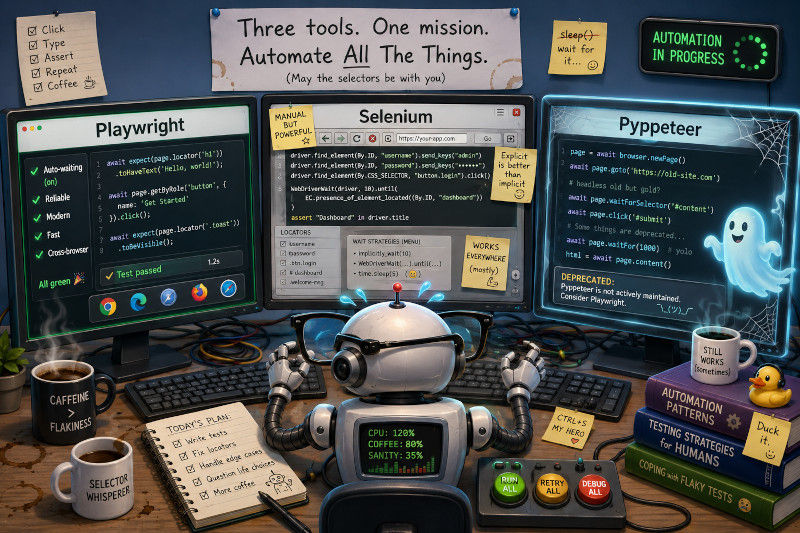
The Rough Outlines
Playwright: Modern async-first architecture
Playwright treats browser automation as an async workflow, even when you use its convenient sync API. It waits for things to be ready. This makes sense, since an elements must be actionable before you can click them. This means that network calls must settle before assertions run. The library handles many common race conditions so you do not have to write defensive sleep(??) statements everywhere in your code.
It was built by Microsoft and released in 2020. It can control Chromium, Firefox, and WebKit with the same API.
The important design choice is that Playwright assumes the page is dynamic. A button may exist before it can be clicked. A form may appear before its JavaScript handlers are attached. A route change may not trigger a full page reload. All of these would get in the way if we try to interact with the page too early. These are the assumptions that Playwright’s API is built around.
Selenium: The veteran cross-browser standard
Selenium predates modern async patterns and gives you direct control but expects you to manage timing yourself. That will mean plenty of sleep statements scattered through test files.
It is the oldest library here, released in 2004. It pretty much runs everywhere, can use every browser and on every platform. If something has a WebDriver implementation, Selenium can drive it.
That reach is the reason Selenium is still everywhere. It is not the newest or most ergonomic option, but it remains the default in many companies because everything is already built around it.
Pyppeteer: The unmaintained Python port
Pyppeteer is a Python wrapper around Puppeteer’s Chrome DevTools Protocol. It was never officially supported and the last meaningful release was January 2022.
Why do we even include it. Because it still appears in plenty of existing codebases. But this should definitely not be an endorsement to start using it in a new project.
Pyppeteer is especially common in older scraping scripts where someone wanted headless Chrome from Python before Playwright matured. Those scripts may still work, but they now carry plenty of maintenance risk: old browser binaries, dependency pinning, Python compatibility issues, and missing newer browser automation features.
The First Example
For start we want to: Start a browser, visit a page, and take a screenshot. This should be a rather simple workflow to see how each library structures code.
Playwright
The context manager handles setup and teardown. As the syntax already suggests, there is both a Sync API and an Async API available .
A few useful options already matter here, for example you will see that the screenshot is only the visible part of the site if you opened it in a browser. In that case
page.screenshot(path="example.png", full_page=True)makes sure that you get the full page. For testing you might want to see what the browser does, for example how does it navigate through a more complex site, does it wait until everything I need is loaded, etc. For this we can switch to non-headless mode
browser = p.chromium.launch(headless=False)Or you want to make sure that the request waits until the network connection is idle
page.goto("https://en.wikipedia.org/wiki/Salvador_Dal%C3%AD", wait_until="networkidle")When starting the new_page you can also immediately adjust the size of the window or you can force operations to slow down, which is especially useful if you want to visually track what your operations are doing.
Selenium
The syntax has a more direct approach, you create the driver, you request the website, save it, and then clean up the driver again.
You can add browser options, for example we can replace our previous driver creation with
Here, the --headless=new flag uses Chrome’s newer headless mode, --window-size controls the viewport size indirectly. Since these are really browser-specific options, what you can use will depend on the browser used. So some knowledge about browser-specific options is needed.
Pyppeteer
This will be quite a mess, Pyppeteer's last maintained version uses Python 3.12.0. That is one of the first major problems. Minor problems include that the used websockets version is older as well and that it might automatically download a chromium version that does not run on a newer system.
In addition, Async is everywhere, even for this simple example. This is the second major problem with Pyppeteer: the async model leaks into every line of code.
The API is not hard, you can see how similar it is to Playwright above, but the maintenance story is the problem. If you are already writing async browser code, Playwright gives you a maintained async API with similar ideas and better tooling.
Where They Diverge
Auto-waiting vs Explicit Control
Playwright has opinions about timing. Let's say you want to click a button on a website:
This means Playwright does more than simply find an element. It checks whether the element is attached to the DOM (Document Object Model), visible, stable, enabled, and able to receive pointer events. That is why Playwright tests often look shorter: the wait logic is hidden inside normal actions.
You can still tune the behaviour:
page.click("button#submit", timeout=5_000)
page.click("button#submit", force=True)
page.locator("button#submit").click(trial=True)
Here timeout=5_000 changes the wait limit to five seconds, force=True skips some actionability checks, which can be useful for unusual UI frameworks but should not be your default, and trial=True checks whether the action would succeed without actually clicking, which can help when debugging timing problems.
Selenium does what you tell it. Immediately.
Selenium’s explicit wait model is more verbose, but it is also very clear. You decide exactly what condition matters: presence in the DOM, visibility, clickability, a URL change, a title change, an alert, or some custom JavaScript condition.
Common Selenium wait conditions include:
EC.presence_of_element_located((By.ID, "submit"))
EC.visibility_of_element_located((By.ID, "submit"))
EC.element_to_be_clickable((By.ID, "submit"))
EC.url_contains("dashboard")
EC.alert_is_present()
The trade-off: Playwright’s auto-waiting reduces flakiness. Selenium’s explicit control lets you optimize timing for unusual cases.
Browser Support
Playwright supports three engines out of the box: Chromium, Firefox, WebKit. In our example above, you just change a single line
# Same API, different browser
browser = p.firefox.launch()
browser = p.webkit.launch()
browser = p.chromium.launch()
You can also choose branded browser channels if they are available on the machine:
browser = p.chromium.launch(channel="chrome")
browser = p.chromium.launch(channel="msedge")
This is useful when you want Playwright’s API but need to run against the installed Chrome or Edge channel rather than Playwright’s bundled open-source Chromium.
Selenium supports everything with a WebDriver, including Chrome, Firefox, Safari, Edge, Internet Explorer if you still need that pain, as well as mobile browsers through Appium.
In Python, the package that connects this world to mobile automation is Appium-Python-Client. Appium extends the WebDriver model beyond desktop browsers into mobile contexts such as Android Chrome, iOS Safari, and native or hybrid mobile apps. The test style still feels Selenium-like: create a driver, declare capabilities, find elements, click, type, and wait.
A minimal Appium-style setup looks different from normal Selenium because you describe the device and platform explicitly:
This is not a tool you reach for when you only need desktop Chrome. But if your browser automation story includes real or emulated phones, tablets, native app screens, or mobile Safari, Appium is the practical Selenium-adjacent path.
Similary, if you need to test on Safari 14 on macOS Catalina, Selenium can do it, while Playwright cannot.
That is the real practical distinction, Playwright gives you a curated browser matrix, while Selenium gives you the broadest possible browser matrix. For most modern web apps, Playwright’s matrix is enough. But for more specialised applications or environments, Selenium may still be the safer choice or even needed option.
Testing Integration
Playwright ships with a pytest plugin. If we have a fictious website loging, we could test it:
This gives you immediate test isolation, features like automatic screenshot on failure or even video recording, and trace files for debugging. All of this is already built-in.
You can run the same test in different ways from the command line:
pytest
pytest --browser chromium
pytest --browser firefox --headed
pytest --tracing retain-on-failure
pytest --video retain-on-failure
pytest --slowmo 300
--headed shows the browser.
--tracing retain-on-failure keeps a Playwright trace only when a test fails. That trace can then be opened in Playwright’s trace viewer and inspected step by step, including DOM snapshots, screenshots, console messages, and network activity.
The package that makes this feel natural in Python is pytest-playwright. It is not a separate browser engine. It is the pytest integration layer that gives you fixtures such as page, browser, context, and playwright, plus command-line options for browser choice, headless/headed mode, tracing, screenshots, and video.
Of course this will mainly matter for you, if you example stops being a personal project and you need a serious test suite. In such a test setup, you rarely want every test to create and destroy the browser manually. You want the framework to provide a fresh browser context, clean cookies and local storage between tests, and capture useful debugging artifacts only when something breaks. That is exactly the role pytest-playwright fills.
You can also combine the fixture style with Playwright’s locator API:
The example is small, but the important shift is architectural: the test does not care how the browser was launched, this is all done by the fixture in this setup. This means that the test only describes user-facing behaviour.
Selenium integrates with pytest but you wire it yourself. You will have to create fixtures for driver setup and cleanup, as well as add in screenshot capture on exception.
A basic Selenium fixture might look like this:
From there, you can add command-line flags, browser selection, screenshots on failure, and remote grid configuration. The difference here is that Playwright has many of these things built-in and ready to go, in Selenium you have to create exactly what you need.
Locating Elements: Philosophy Differences
Every browser automation library needs selectors. And how you find elements on the page shapes how you think about the page and what the model is in your mind.
Playwright: Role and accessibility selectors
Playwright encourages you to select elements the way assistive technology sees them. This makes your tests more resilient to implementation changes. For example, the button’s ID might change, but its role probably will not.
In newer Playwright code, the locator API is usually clearer than raw selector strings:
This style reads like a user story and it encourages better application markup. If get_by_role("button", name="Submit") cannot find the button, the issue may be with your test, but it may also reveal that your UI is less accessible than you thought.
In addition, get_by_test_id() is useful when text or layout changes frequently. Many teams add stable attributes such as data-testid="checkout-button" specifically for tests. That is often better than depending on a long CSS path like .layout > div:nth-child(3) > button.
Selenium: CSS and XPath
Selenium does not push you toward any particular approach. In addition to the standard variants above, it also supports partial link text, tag name, class name, and name selectors:
For simple pages, ID and name selectors are often enough. For complex web apps, CSS selectors are usually the most readable. XPath becomes useful when you need to move through document structure, such as “find the row that contains this customer name, then click the button in that row”.
Example:
That kind of relative lookup can be very expressive, but XPath-heavy test suites can become hard to maintain if the page structure changes often.
Where This Leaves Us
At this level, the choice is mostly about philosophy.
Playwright gives you modern defaults: auto-waiting, clean browser contexts, strong testing ergonomics, and a sense that the library understands how messy modern web apps can be.
Selenium gives you reach: mature WebDriver support, broad browser coverage, existing infrastructure, and a model many QA teams already know.
Pyppeteer mostly gives you history: useful to recognise, risky to start with, and often a sign that migration should be on the roadmap.
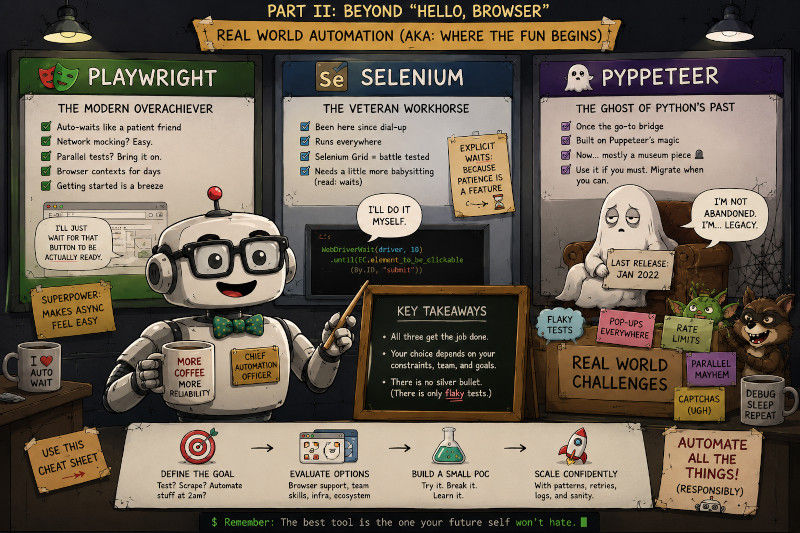
For new Python browser automation, Playwright is usually the easiest default to recommend. For organisations with established WebDriver infrastructure, unusual browser requirements, or mobile testing needs, Selenium still has a very real place. Pyppeteer belongs mostly in the “maintain it until you can replace it” category.
The real differences become clearer when a small script turns more extensive: when tests need to run in parallel, when pages have optional pop-ups, when scraping jobs need crawling infrastructure, or when browser automation has to reach mobile devices.
That is where Part II goes next: beyond the basic choice of library, and into the practical patterns that make browser automation reliable once the project grows.
Comments